

Recently, accessibility advocate Meryl Evans shared a clear guide explaining YouTube’s latest updates for captions and descriptive audio. Her post got me thinking not just about how to find those new options in YouTube Studio, but about when creators should think about them. The answer is right at the beginning.
Why Accessibility Is Good Business
Captions and descriptive audio are often seen as “nice-to-have” extras, yet they directly impact your reach. Around one in four people globally live with some form of disability, and hearing or vision loss are among the most common. When you publish a video without captions or descriptive audio, you’re essentially shutting the door on millions of potential viewers.
Accessibility isn’t just about inclusion. Captions boost search visibility and engagement for everyone. Many people watch videos on mute during commutes or in noisy offices. Descriptive audio, meanwhile, makes your storytelling clearer even for sighted viewers. Building accessibility in early isn’t an act of compliance; it’s a competitive advantage.
Plan Accessibility Before You Hit Record
Think of accessibility as part of your pre-production checklist. When you outline your video script, note the visual moments that may need explanation for blind or low-vision viewers. If you’re filming a product demo, say what’s happening instead of relying only on visuals. This simple habit saves hours later because your descriptive audio flows naturally with the content.
If you’re using background music or sound effects, leave space in the mix for voiceovers. You’ll thank yourself when you record or edit a descriptive-audio track. Captions are similar: if your audio is clear, your captions will be too. Invest in a decent microphone and avoid talking over others. Accessibility begins with clarity.
Captions: Quick Wins That Matter
YouTube automatically generates captions, but they’re far from perfect. Review them manually before publishing. Correct misspellings, remove filler words, and break up long sentences for readability. Uploading your own caption file (.srt or .vtt) gives you full control.
In YouTube Studio, captions now live under the Languages section rather than Subtitles. Select your video, click the pencil icon, and add captions for your preferred language. You can upload multiple versions if you serve an international audience. Meryl Evans’ guide walks through these steps in detail, and it’s worth bookmarking for reference.
Descriptive Audio: The Overlooked Feature
Descriptive audio adds spoken narration that explains key visual details such as facial expressions, gestures, text on screen, or actions that would otherwise be invisible to blind or low-vision viewers. Until recently, YouTube creators had to upload a separate video with narration built in. Now, you can attach a descriptive-audio track to your main video directly in YouTube Studio.
Under the same Languages tab, choose “Add Audio Track” and upload your descriptive version. You can provide multiple language options just like captions. If you don’t have the resources to record your own narration, you can script one and use a realistic text-to-speech voice for now. The goal is to communicate, not to sound cinematic.
Avoiding Common Mistakes
The biggest mistake is leaving accessibility until the end. Retrofitting captions and descriptive audio feels like repainting a house after it’s furnished. Instead, script and plan for it early.
Another common issue is mixing up versions. If you record a descriptive-audio track, make sure your metadata clearly labels it, for example: “Video Title (with Descriptive Audio).” This helps users and YouTube’s algorithm distinguish it from your standard version.
Finally, don’t rely on automatic captions. They’re a good start but rarely accurate enough for professional work. Fix errors manually or use an accessible captioning service. It’s also worth testing your descriptive-audio playback with screen reader users to confirm it works as expected.
Tracking the Impact
Accessibility improvements can be measured. After adding captions, check your YouTube analytics for increased watch time and retention. If you include descriptive audio, look for feedback in the comments. Blind and low-vision viewers are vocal about features that make a difference. Over time, you’ll notice higher engagement and fewer viewers dropping off early.
Some creators even add a short “Accessibility thanks” at the end of their videos, acknowledging the viewers who benefit from captions or descriptive audio. This simple gesture invites trust and signals that your channel welcomes everyone.
The Human Side of Accessible Creation
When you create with accessibility in mind, you do more than comply with guidelines. You connect with people who rarely see themselves considered. Meryl Evans, who is deaf, reminds us that accessibility improves the experience for everyone, not just those with disabilities. Her consistent advocacy shows that inclusion isn’t an add-on; it’s craftsmanship.
Planning for accessibility makes storytelling stronger. Writing descriptive scripts forces creators to clarify visuals. Reviewing captions improves dialogue. Each step strengthens the final product.
The Takeaway
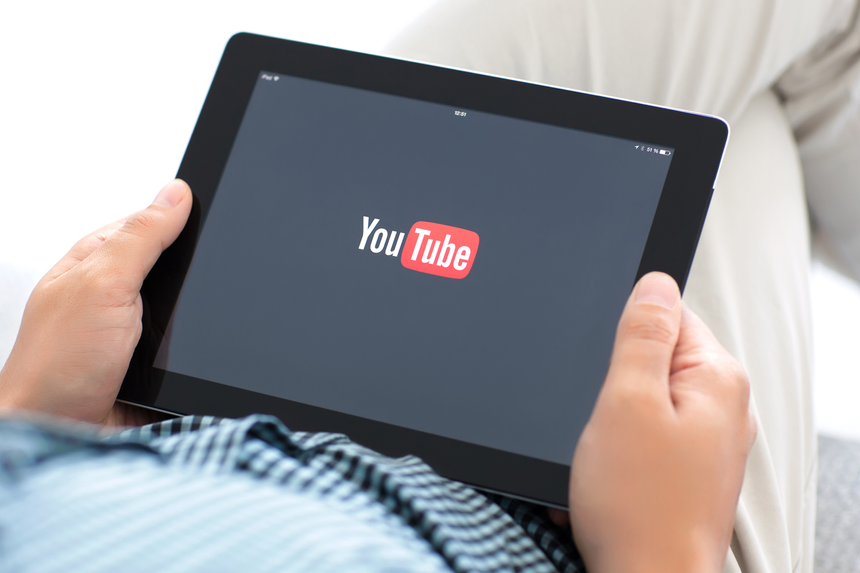
If you’re producing YouTube videos, accessibility should be part of your creative DNA, not an afterthought. Plan captions and descriptive audio before recording, use YouTube Studio’s updated Languages tab to manage them, and test how your audience responds.
Accessibility is not just about compliance or kindness. It’s about quality, reach, and professionalism. As Meryl Evans often says, accessibility is beautiful design. To learn more about her work and stay up to date on accessibility insights, connect with her on LinkedIn. When you make your videos accessible, everyone wins.
/Passle/60211dc9e5416a0c14bc63d4/SearchServiceImages/2026-10-07-03-07-28-884-6ac5b770e2138e97236d8711.jpg)
/Passle/60211dc9e5416a0c14bc63d4/SearchServiceImages/2026-10-03-02-21-11-638-6ac066977c1a0b1c3a065bb9.jpg)
/Passle/60211dc9e5416a0c14bc63d4/SearchServiceImages/2026-09-27-17-44-10-859-6ab955eaef3ecc8443aa618d.jpg)
/Passle/60211dc9e5416a0c14bc63d4/SearchServiceImages/2026-10-14-08-11-38-961-6acf393a477453bcaa310c72.jpg)